01
Decide once.
Keep it in sight.
Pin your main goal to the menu bar. When you switch windows, there's a reminder of what you came to do.
Your next tasks can wait on the list.
 offsetFocus, with a little company.
A focus timer for your Mac
Your task and timer, right in your Mac’s menu bar. Pick one thing. Give it a little time.
Mac app coming soon. Try the timer here today.
Main goalYour main goal is pinned to the menu bar. Use a task’s pin to change it.
 Up next
Press Start focus. Click a task to make it yours.
Browser demo · Tasks reset on reload.
 No account to create Tasks stay on your Mac
 Focus and break, your way
How it works
Write down a small next step, choose a focus session, and start. Offset keeps your goal visible while you get on with the work.
Pin your main goal to the menu bar. When you switch windows, there's a reminder of what you came to do.
Your next tasks can wait on the list.

A focus session with an end in sight. Choose your durations, take a break, and come back for the next thing.
Pause, resume, or reset when plans change.

A place for the rest of your list
Another task comes to mind? Save it for later and stay with the one you chose.
Make the first step smaller
A whole project can wait. Give the next concrete step a session of its own.
Start with an opening paragraph. Keep that goal visible while you turn a rough idea into a first draft.
Add your writing task ↗Choose the bug or screen you're working on. Add the other fixes to Later as you notice them.
Add your next fix ↗Pick a chapter or a set of problems. Work through a session, then take a break before continuing.
Add your study task ↗The floating pod
Open the floating pod and drag it where it fits. Your task and remaining time stay visible while you work in another window.
Prefer a clear desktop? Close the desk and return through your goal in the menu bar. Your session keeps going.
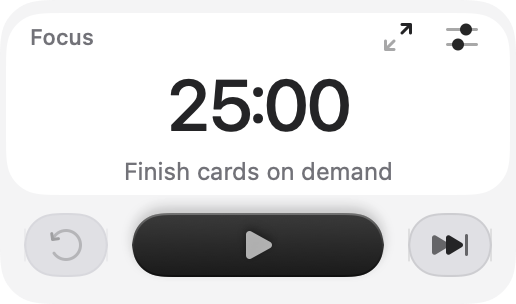
From starting to stepping away
Start with 25 minutes of focus and a 5-minute break, or choose times that suit the task. Offset gives you a moment to decide what comes next.
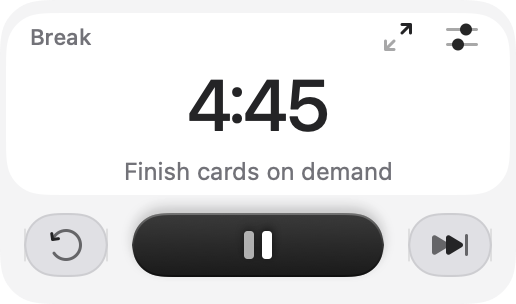
Set 5–60 minutes of focus. Pause when you need to, then resume the same session.
When focus ends, your break starts automatically. Keep the goal for another session or mark it done.
When the break ends, the timer waits. Start the next focus session when you're ready to work.
In the Mac app, choose Forest, Waves, or Silence. Break sounds have their own volume and play only during a running break. Completion chimes have a separate switch.
Three ways to make it yours
Choose the look that makes you want to sit down and start.
Three looks, each with light and dark appearances. Same timer. Same tasks.
Soft surfaces. A clear head.
The desk · Modern
A few small details
Less setup. More room for the work.
No. Your tasks and settings stay on your Mac. Open the app, choose a task, and start a session.
Yes. Open the floating pod for a smaller timer you can drag around your screen. Your active task and countdown also stay in the menu bar.
Yes. Set your durations before starting a session. You can pause, resume, or reset when your plans change.
Your break starts automatically after focus. You can keep your main goal or mark it done. At the end of the break, Offset waits for you to start the next focus session.
No. The first release helps you keep a task in sight and work in timed sessions. It does not block websites or other apps.
The timer above is an interactive browser version of the Modern desk. You can edit tasks, pin a main goal, adjust durations, and run a session. Demo tasks reset when you reload. The Mac app adds the system menu bar, floating pod, and saved tasks. The three look previews are native app screenshots.
Offset is being prepared for release. A download link will be added here when it is available. You can explore the app’s three looks above.
Coming soon · macOS 14 or later
Offset for Mac is coming soon.
macOS 14 or later. No account required.